
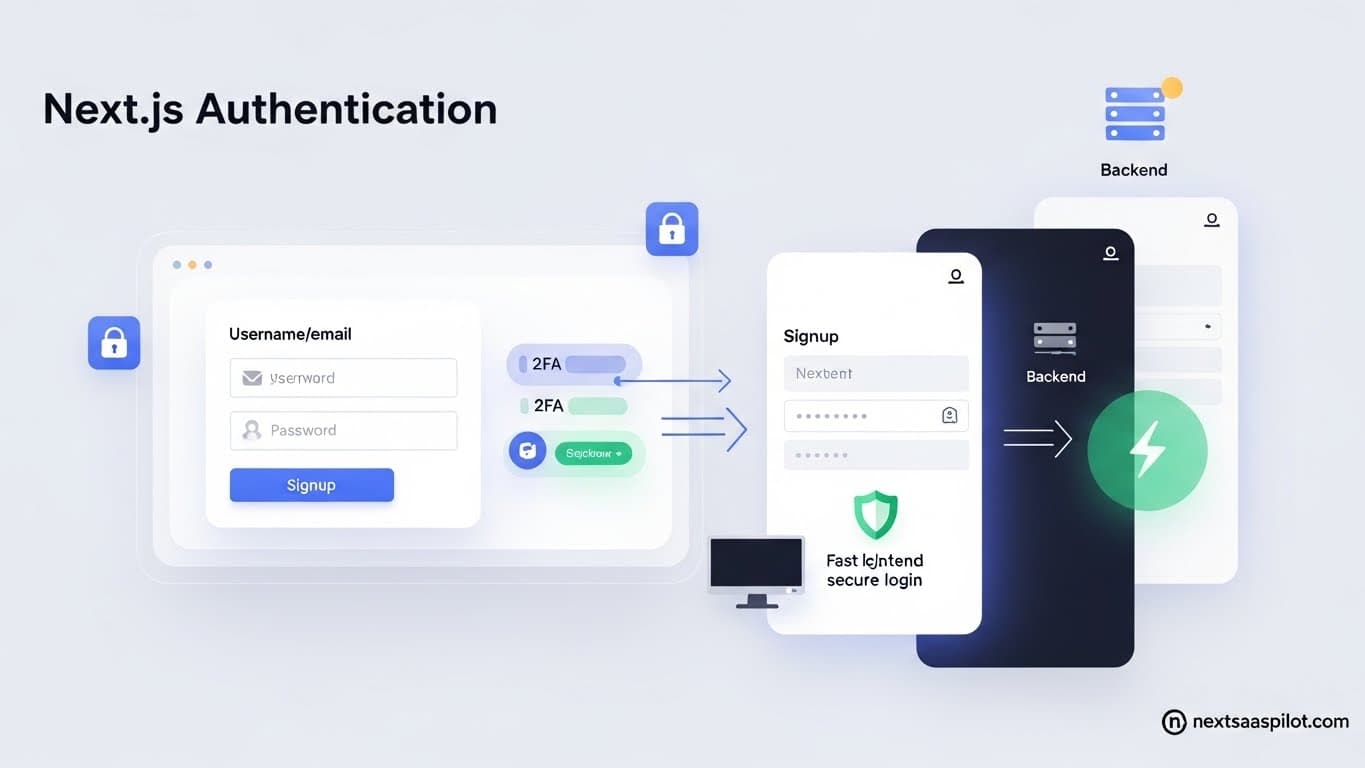
Handling Next.js authentication is a fundamental step in building any serious SaaS application. Authentication is the process of verifying a user’s identity to grant them access to your service. For a SaaS product, this isn’t just a login screen; it’s the gateway to user-specific data, paid features, and personalized experiences. Without a solid authentication system, your application is insecure and incomplete.
This process is especially important in Next.js. As you build features that rely on user data or protect certain routes, you need a reliable way to manage who is logged in and what they can access. A proper setup ensures data privacy, protects user accounts, and provides a smooth user experience.
This guide will walk you through the essential concepts and practical steps for implementing authentication in your Next.js SaaS app. We will explore different strategies, from simple to complex, and discuss popular libraries that can simplify the process. By the end, you’ll understand how to choose and implement the right authentication solution for your project.
What Are the Key Authentication Methods for SaaS Apps?
Key authentication methods for SaaS apps include traditional password-based systems, convenient social logins via OAuth, enhanced security with multi-factor authentication (MFA), and stateless verification using token-based methods like JSON Web Tokens (JWT). Each approach offers different levels of security, user convenience, and implementation complexity for your application.
Choosing the right authentication strategy is crucial. It directly impacts user experience and the security of your platform. Let’s explore each of these common methods in more detail.
Password-Based Authentication
This is the most traditional form of authentication. Users create an account with a unique identifier, usually an email address, and a secret password. When they want to log in, they provide these credentials, and the system checks them against the stored records.
While it is the most familiar method for users, it places a heavy security burden on your application. You are responsible for securely storing user passwords. This means you must hash and salt passwords to protect them, even in the event of a data breach. Storing passwords in plain text is a critical security mistake that should always be avoided.
Example:
- A user signs up with
user@example.comand a passwordMySecurePassword123. - Your backend doesn’t store the password directly. Instead, it generates a unique “salt” and combines it with the password.
- This combination is then “hashed,” creating a long, irreversible string like
a1b2c3d4...that gets stored in the database. - When the user logs in again, the same process is repeated, and the resulting hash is compared to the one in the database.
OAuth and Social Logins
OAuth (Open Authorization) allows users to log in to your application using their existing accounts from other services like Google, GitHub, or Facebook. This is often called “social login.” It provides a convenient experience for users, as they don’t need to create and remember a new password for your app.
From a developer’s perspective, OAuth delegates the authentication process to a trusted third party. Instead of managing passwords, you receive a confirmation from the provider that the user is who they say they are. This can reduce your security responsibilities, but it also introduces a dependency on an external service.
How it works:
- A user clicks “Log in with Google” on your site.
- They are redirected to Google’s login page.
- After they successfully log in with Google, they are asked to grant your application permission to access their basic profile information.
- Once they grant permission, Google redirects them back to your app with an authorization code.
- Your application exchanges this code for an access token, which confirms the user’s identity.
Multi-Factor Authentication (MFA)
Multi-factor authentication adds an extra layer of security by requiring users to provide two or more verification factors to gain access. This makes it much harder for unauthorized individuals to access an account, even if they have the password.
The factors are typically categorized into three types:
- Knowledge: Something the user knows (e.g., a password or PIN).
- Possession: Something the user has (e.g., a smartphone with an authenticator app, a hardware key).
- Inherence: Something the user is (e.g., a fingerprint or facial scan).
For SaaS applications, implementing MFA is a best practice, especially for accounts with access to sensitive data or administrative privileges. Common MFA methods include sending a one-time code via SMS or email or using an authenticator app like Google Authenticator.
Token-Based Authentication (JWT)
Token-based authentication is a stateless method that has become very popular in modern web applications, including those built with Next.js. Instead of creating a session on the server after a user logs in, the server generates a signed token and sends it to the client. The client then includes this token in the header of every subsequent request to access protected resources.
JSON Web Tokens (JWT) are a common standard for creating these tokens. A JWT contains three parts: a header, a payload, and a signature.
- Header: Contains information about the token type and the signing algorithm.
- Payload: Includes claims, which are statements about the user (like their ID and roles) and other data.
- Signature: Verifies that the token was not tampered with.
Because the server does not need to store session information, this approach is highly scalable and works well with distributed systems and serverless architectures. The server simply decodes and verifies the token’s signature on each incoming request to authenticate the user.
How Does Authentication Work in Next.js?
Authentication in Next.js works by using its hybrid architecture to manage user sessions. Protected data is fetched on the server using Server-Side Rendering (SSR) or API Routes, which verify a user’s credentials via tokens or cookies. This ensures secure data handling before content is ever sent to the client.
Next.js provides a flexible environment for handling user identity, but its unique rendering capabilities mean you have to be intentional about your approach. The framework’s power lies in its ability to handle tasks on both the server and the client, which directly impacts how you implement a secure authentication flow.
The Role of Next.js Architecture
Next.js is not just a frontend library; it’s a full-stack framework. This means it has both a client-side (browser) and a server-side (Node.js) context. This dual nature is perfect for authentication because security checks can happen on the server, away from the user’s browser.
Key architectural features for authentication include:
- API Routes: These are serverless functions located in the
pages/api/directory. You can use them to build a secure backend for handling login, logout, and user registration without needing a separate server. - Server Components & Server-Side Rendering (SSR): With features like
getServerSidePropsor React Server Components, you can check a user’s authentication status on the server before a page is rendered. If a user is not logged in, you can redirect them or show a different version of the page.
This server-first approach is a major advantage. It prevents sensitive user data from being exposed on the client and stops unauthorized users from even seeing the content of a protected page.
How Do API Routes Support Authentication?
API Routes are the backbone of a self-contained Next.js authentication system. You can create endpoints to manage the entire user lifecycle. Since these routes run only on the server, you can safely connect to your database, hash passwords, and create session tokens.
Here’s a simple example of a login API route:
// pages/api/login.js
export default async function handler(req, res) {
  if (req.method === 'POST') {
    const { email, password } = req.body;

    // 1. Find the user in your database by email
    // 2. Compare the provided password with the stored hashed password
    // 3. If they match, create a session or JWT
    // 4. Set the token in an HTTP-only cookie for security

    res.status(200).json({ message: 'Login successful' });
  } else {
    res.status(405).json({ message: 'Method not allowed' });
  }
}
In this flow, the sensitive logic of verifying credentials and creating a session happens entirely on the server. The client only needs to make a POST request to /api/login and handle the response.
Client-Side vs. Server-Side Authentication
You can manage authentication state in Next.js on either the client or the server. Each has its own use case.
Client-Side Authentication
With a client-side approach, the initial page sent from the server is generic. Once the page loads in the browser, client-side JavaScript makes a request to an API endpoint (like /api/user) to fetch the user’s data.
- Pros: It can feel fast after the initial load, as page transitions don’t require a full server round-trip. It fits well with the Single Page Application (SPA) model.
- Cons: It often shows a loading state or a “flash” of unauthenticated content before the user data is available. It can also be less secure if not implemented carefully, as access control decisions happen in the browser.
Server-Side Authentication
With a server-side approach, the authentication check happens before the page is rendered. Using a function like getServerSideProps, you can inspect incoming request headers for a session cookie or token.
- Pros: It’s highly secure because protected content is never sent to unauthenticated users. There is no flash of unauthenticated content, improving the user experience.
- Cons: It can be slightly slower on initial page load because the server must perform the check before sending any HTML.
For most SaaS applications, a hybrid approach is best. Use server-side authentication for protecting entire pages and fetching critical user data. Use client-side data fetching for less sensitive information or to update parts of the UI without a full page reload. This gives you both strong security and a great user experience.
Step-by-Step Guide: Implementing Authentication in Next.js
Implementing authentication in Next.js involves setting up your project, installing a library like NextAuth.js, and creating API routes to handle login and session management. You then protect pages and routes by checking the user’s session on the server, ensuring only authenticated users can access secure content.
Now, let’s walk through the process from start to finish. This guide will use NextAuth.js (now known as Auth.js) because it’s a popular and comprehensive solution for Next.js.
1. How to Set Up a New Next.js Project
First, you need a Next.js application. If you don’t have one already, you can create one quickly using the command line. Make sure you have Node.js installed on your system.
Open your terminal and run the following command:
npx create-next-app@latest my-saas-app
The installer will ask you a few questions. For this guide, you can choose the default options. Once the installation is complete, navigate into your new project directory:
cd my-saas-app
Your project is now ready for the next step.
2. How to Install and Configure an Authentication Library
We’ll install next-auth, the go-to library for handling authentication in Next.js. It simplifies everything from social logins to password-based flows.
Install it with npm:
npm install next-auth
Next, you need to create a “catch-all” API route that next-auth will use to manage all authentication-related requests (like sign-in, sign-out, and session handling).
Create a new file at app/api/auth/[...nextauth]/route.js. This special file structure tells Next.js to forward all requests starting with /api/auth/ to this handler.
Inside route.js, add the following configuration:
// app/api/auth/[...nextauth]/route.js
import NextAuth from "next-auth"
import GitHubProvider from "next-auth/providers/github"

export const authOptions = {
  // Configure one or more authentication providers
  providers: [
    GitHubProvider({
      clientId: process.env.GITHUB_ID,
      clientSecret: process.env.GITHUB_SECRET,
    }),
    // ...add more providers here
  ],
}

const handler = NextAuth(authOptions);

export { handler as GET, handler as POST };
You also need to add your provider credentials to an environment variables file. Create a file named .env.local in your project’s root directory and add your keys. For this example, we’re using GitHub.
# .env.local
GITHUB_ID=your_github_client_id
GITHUB_SECRET=your_github_client_secret
Remember to add .env.local to your .gitignore file to avoid committing secrets to your repository.
3. How to Create API Routes for Login and User Management
With NextAuth.js, you don’t have to manually create API routes for login, logout, or registration. The library handles these for you automatically under the /api/auth/ endpoint.
/api/auth/signin: Renders a pre-built login page with the providers you configured./api/auth/signout: Handles the sign-out process./api/auth/session: An endpoint to get the current user’s session status./api/auth/providers: Returns a list of the configured authentication providers.
This convention-over-configuration approach saves a significant amount of time. You can customize the behavior of these endpoints and even the look of the sign-in page, but the core functionality is ready out of the box.
4. How to Secure Pages and API Routes with Middleware
Now that you have authentication set up, you need to protect your application’s routes. Middleware is the perfect tool for this in Next.js. It runs on the server before a request is completed, allowing you to redirect unauthenticated users.
Create a middleware.js file in the root of your project (or in the src folder if you have one).
// middleware.js
export { default } from "next-auth/middleware"

export const config = {
  matcher: ["/dashboard/:path*", "/settings"],
}
This configuration does two things:
- It imports and re-exports the default middleware from
next-auth. This middleware automatically checks for a valid user session. - The
configobject specifies which routes the middleware should protect. In this case, any route under/dashboardand the/settingspage will require the user to be logged in.
If an unauthenticated user tries to access /dashboard, the middleware will automatically redirect them to the sign-in page you configured with NextAuth.js. This is a powerful and declarative way to secure large parts of your application with minimal code.
How to Use NextAuth.js for Authentication?
To use NextAuth.js, you configure providers like Google or GitHub in a central options object. The library then automatically handles user sign-in flows, session management, and token creation. You can access session data on both the client and server and use callbacks to customize behavior, like saving user data to your database.
NextAuth.js (now part of Auth.js) is a powerful, open-source library designed to simplify authentication in Next.js applications. It abstracts away much of the complexity, allowing you to add robust authentication with just a few lines of code. Let’s dive deeper into its core features.
How to Set Up Providers like Google and GitHub?
Providers are the services users can log in with. NextAuth.js has built-in support for dozens of popular OAuth providers, as well as email and credential-based (username/password) authentication.
Setting up a provider is straightforward. You import it from next-auth/providers and add it to the providers array in your authOptions. Each provider requires a clientId and clientSecret, which you get from the provider’s developer console.
Here is an example configuration in app/api/auth/[...nextauth]/route.js that includes both Google and GitHub:
// app/api/auth/[...nextauth]/route.js
import NextAuth from "next-auth";
import GitHubProvider from "next-auth/providers/github";
import GoogleProvider from "next-auth/providers/google";

export const authOptions = {
  providers: [
    GitHubProvider({
      clientId: process.env.GITHUB_ID,
      clientSecret: process.env.GITHUB_SECRET,
    }),
    GoogleProvider({
      clientId: process.env.GOOGLE_CLIENT_ID,
      clientSecret: process.env.GOOGLE_CLIENT_SECRET,
    }),
    // ... you can add more providers here
  ],
};

const handler = NextAuth(authOptions);

export { handler as GET, handler as POST };
Once configured, NextAuth.js will automatically generate a sign-in page that lists these options for the user. This makes adding social logins incredibly easy.
How Do You Manage Sessions and Tokens?
NextAuth.js manages sessions and tokens behind the scenes. When a user successfully authenticates, the library creates a session and, by default, stores it in a secure, HTTP-only cookie. This strategy is secure because it prevents client-side JavaScript from accessing the session token, mitigating XSS attacks.
You can access the session data in two primary ways:
1. On the Server (in Server Components or Route Handlers)
You can get the current user’s session directly in server-side code. This is the recommended approach for fetching data or performing checks before rendering a page.
// app/dashboard/page.js
import { getServerSession } from "next-auth";
import { authOptions } from "../api/auth/[...nextauth]/route";
export default async function DashboardPage() {
const session = await getServerSession(authOptions);
if (!session) {
// Handle unauthenticated state, perhaps redirect
returnAccess Denied
;
}
return (
Welcome to your Dashboard, {session.user.name}
Your email is: {session.user.email}
);
}
2. On the Client (in Client Components)
For interactive UI elements in client components, you can use the useSession hook. You must wrap your application in a
First, update your root layout (app/layout.js):
// app/layout.js
'use client' // Required for SessionProvider
import { SessionProvider } from "next-auth/react";

export default function RootLayout({ children }) {
  return (


        {children}


  );
}
Then, you can use the hook in any client component:
// components/AuthButton.js
'use client'
import { useSession, signIn, signOut } from "next-auth/react";
export default function AuthButton() {
const { data: session } = useSession();
if (session) {
return (
<>
Signed in as {session.user.email}
);
}
return (
<>
Not signed in
);
}
How Can You Customize Callbacks and Events?
Callbacks allow you to hook into the NextAuth.js lifecycle to add your own custom logic. This is essential for tasks like storing user information in your database, controlling session content, or implementing role-based access control.
The most common callbacks are signIn, jwt, and session.
signIn: Called when a user attempts to sign in. You can use it to block a user from signing in, for example, if their account is inactive.jwt: This callback is invoked whenever a JSON Web Token is created or updated. You can use it to add custom properties to the token, such as a user ID or role from your database.session: This callback is called whenever a session is checked. You can use it to pass data from the JWT to the client-sidesessionobject.
Here’s an example showing how to add a user’s ID from your database to the session object:
// app/api/auth/[...nextauth]/route.js

// ... (provider configuration)

export const authOptions = {
  providers: [
    // ...
  ],
  callbacks: {
    async jwt({ token, user }) {
      // On sign-in, 'user' object is available. Persist the user ID to the token.
      if (user) {
        token.id = user.id; // Assuming your user object from the provider has an id
      }
      return token;
    },
    async session({ session, token }) {
      // Pass the user ID from the token to the session object
      session.user.id = token.id;
      return session;
    },
  },
};
With this setup, you can access session.user.id in both client and server components, allowing you to fetch user-specific data from your database.
How to Implement Role-Based Access Control (RBAC) in Next.js?
Implementing Role-Based Access Control (RBAC) in Next.js involves extending your authentication system to include user roles. You store a user’s role (e.g., ‘admin’, ‘user’) in your database, add it to their session token upon login, and then check this role on the server to conditionally grant access to specific pages or features.
Once you have basic authentication working, the next step for many SaaS applications is managing what different users are allowed to do. Not every user should have access to an admin dashboard, and some features might only be available to paying customers. This is where Role-Based Access Control, or RBAC, comes into play.
What is RBAC and Why is it Important?
RBAC is a security model that restricts system access based on a person’s role within an organization. Instead of assigning permissions to users one by one, you assign permissions to roles (like admin, editor, or viewer) and then assign roles to users. A user’s access rights are determined by the role they hold.
For a SaaS application, this is incredibly important for several reasons:
- Security: It prevents users from accessing data or performing actions they shouldn’t. For example, a regular user should not be able to access administrative settings.
- Scalability: As your user base grows, managing individual permissions becomes impossible. RBAC simplifies administration by grouping permissions logically.
- Maintainability: When you need to change what a group of users can do, you only have to update the permissions for a single role, not for every user in that group.
How to Define User Roles and Permissions
Before writing any code, you first need to define the roles your application will have. This typically starts by modeling your users in your database. You’ll want to add a role field to your user model.
Let’s say you’re using a simple schema for your users. It might look something like this:
// Example of a user schema with a role
{
  id: "user_123",
  email: "user@example.com",
  name: "John Doe",
  role: "USER" // Could also be 'ADMIN', 'EDITOR', etc.
}
Common roles in a SaaS app might include:
ADMIN: Has full access to the system, including user management and billing.USER: A standard authenticated user with access to core features.GUEST: A user who is logged in but has very limited permissions, perhaps part of a free tier.
Once you have roles defined in your database, the next step is to make sure the user’s role is included in their session token when they log in.
Adding Roles to the Session Token with NextAuth.js
Using the callbacks in NextAuth.js, you can easily add the user’s role from your database to their session. This makes the role available wherever you can access the session object.
You’ll need to modify the jwt and session callbacks in your authOptions.
// app/api/auth/[...nextauth]/route.js
// ... (provider configuration)

export const authOptions = {
  // ... providers
  callbacks: {
    async jwt({ token, user }) {
      // This is the first sign-in
      if (user) {
        // Find the user in your database to get their role
        // const dbUser = await findUserByEmail(user.email);
        // token.role = dbUser.role;

        // For demonstration, we'll hardcode a role
        token.role = "USER";
      }
      return token;
    },
    async session({ session, token }) {
      // Pass the role from the token to the session object
      if (session?.user) {
        session.user.role = token.role;
      }
      return session;
    },
  },
};
Now, the session.user.role property will be available in both server and client components, containing the role you assigned.
How to Protect Routes and Components Based on Roles
With the user’s role available in the session, you can now enforce access control throughout your application.
Protecting Pages on the Server
The most secure way to protect a page is on the server, before any content is sent to the client. You can do this within a Server Component or using getServerSideProps by checking the session.
Here’s how you could protect an admin dashboard page:
// app/admin/page.js
import { getServerSession } from "next-auth/next";
import { authOptions } from "../api/auth/[...nextauth]/route";
export default async function AdminDashboard() {
const session = await getServerSession(authOptions);
// 1. Check if a user is logged in
if (!session) {
// Optionally redirect them to the login page
returnAccess Denied. Please log in.
;
}
// 2. Check if the user has the 'ADMIN' role
if (session.user?.role !== "ADMIN") {
returnAccess Denied. You do not have permission to view this page.
;
}
// 3. If they are an admin, render the page
return (
Welcome to the Admin Dashboard, {session.user.name}
{/* Admin-only content goes here */}
);
}
Conditionally Rendering UI on the Client
Sometimes, you just need to show or hide a piece of the UI, like a button, based on a user’s role. You can do this in a Client Component using the useSession hook.
// components/Navigation.js
'use client'
import { useSession } from "next-auth/react";
import Link from "next/link";
export default function Navigation() {
const { data: session } = useSession();
return (
);
}
This approach ensures a clean and role-appropriate user interface, enhancing both security and user experience. By combining database roles, session tokens, and server-side checks, you can build a powerful and secure RBAC system for your Next.js SaaS app.
Best Practices for Securing Authentication in Next.js
To secure authentication in Next.js, always use HTTPS and set cookies with the Secure, HttpOnly, and SameSite=Strict attributes. You should also implement rate limiting and CAPTCHA on login forms to prevent brute-force attacks, securely store sensitive data, and consistently update your dependencies to patch vulnerabilities.
Implementing authentication is only half the battle; securing it is just as critical. A weak authentication system can expose your entire application and its user data to serious risks. Let’s look at some essential security practices you should follow when building authentication in a Next.js application.
Why Must You Use HTTPS and Secure Cookies?
Using HTTPS (HTTP over SSL/TLS) is non-negotiable. It encrypts all communication between the user’s browser and your server, making it impossible for attackers to eavesdrop on the connection and steal session tokens or credentials. In production, your application must always be served over HTTPS.
Alongside HTTPS, you must configure cookies correctly. When using a library like NextAuth.js or setting your own cookies, ensure they have the following attributes:
HttpOnly: This flag prevents client-side JavaScript from accessing the cookie. It’s a crucial defense against Cross-Site Scripting (XSS) attacks, where an attacker might inject a script to steal a user’s session cookie.Secure: This attribute ensures the browser will only send the cookie over an encrypted HTTPS connection. It prevents the cookie from being accidentally sent over an insecure HTTP connection.SameSite: This attribute controls when a browser sends cookies with cross-origin requests. Setting it toStrictorLaxprovides strong protection against Cross-Site Request Forgery (CSRF) attacks.Strictis the most secure option, preventing the cookie from being sent on any cross-site navigation.
NextAuth.js configures these cookie settings for you by default, which is one of its major security benefits.
How to Implement Rate Limiting and CAPTCHA
Your login, registration, and password reset endpoints are prime targets for automated brute-force attacks. An attacker can write a script to try thousands of password combinations in a short amount of time. To prevent this, you should implement rate limiting.
Rate limiting restricts the number of times a user or IP address can make a request to an endpoint within a specific time frame. For example, you could limit a single IP address to five login attempts per minute. After that, you would temporarily block them.
You can implement rate limiting in Next.js API routes using a library like upstash/ratelimit with Redis or an in-memory solution for smaller applications.
Another effective tool is CAPTCHA (Completely Automated Public Turing test to tell Computers and Humans Apart). Services like Google’s reCAPTCHA or hCaptcha can be added to your forms to verify that the user is human, effectively stopping most automated bots.
How Should You Store Sensitive Data Securely?
Your application will handle sensitive user information, from passwords to personal details. Never store this data in plain text.
- Passwords: As mentioned earlier, passwords must always be hashed and salted before being stored in your database. Use a strong, modern hashing algorithm like Argon2 or bcrypt. These algorithms are computationally intensive, which makes them resistant to brute-force guessing attempts even if your database is compromised.
- API Keys and Secrets: All credentials, such as database connection strings, API keys, and secret keys for your authentication provider, must be stored in environment variables (
.env.local). Never hardcode them in your source code. Ensure your.env.localfile is listed in your.gitignoreto prevent it from being committed to version control.
Why Is Regularly Updating Dependencies Important?
The software world moves quickly, and security vulnerabilities are discovered in open-source packages all the time. Your application’s dependencies, including Next.js itself and libraries like next-auth, are no exception.
Regularly updating your dependencies is a critical security practice. It ensures you have the latest security patches, protecting your application from known exploits.
You can use tools like npm audit or GitHub’s Dependabot to automatically scan your project for dependencies with known vulnerabilities and even create pull requests to update them. Make it a routine part of your development process to review and apply these updates. Neglecting this can leave your application exposed to preventable attacks.
Common Authentication Challenges in Next.js and How to Solve Them
Common authentication challenges in Next.js include managing token expiration, ensuring session persistence across server and client, and debugging complex auth flows. Solutions involve implementing token refresh logic, using secure cookies for session storage, and leveraging server-side logging to diagnose issues effectively, especially as your application scales.
Even with powerful tools like NextAuth.js, implementing authentication is not without its hurdles. As your application grows, you’ll encounter edge cases and scenarios that require careful thought. Understanding these common challenges ahead of time can save you hours of debugging.
How Do You Handle Token Expiration?
Access tokens, especially JWTs, are designed to be short-lived for security reasons. A token might expire after 15 minutes or an hour. When it does, your application needs a way to get a new one without forcing the user to log in again. This is where refresh tokens come in.
The Challenge: A user is actively using your app when their access token expires. Suddenly, API requests start failing, and they are logged out. This creates a poor user experience.
The Solution: Implement a refresh token rotation strategy.
- Issue Two Tokens: When a user logs in, issue both a short-lived access token and a long-lived, single-use refresh token. The refresh token is stored securely in your database and in an
HttpOnlycookie. - Detect Expiration: When an API call fails with an “expired token” error, your application’s client-side logic should automatically make a request to a dedicated refresh endpoint (e.g.,
/api/auth/refresh). - Use the Refresh Token: This endpoint receives the refresh token. It verifies the token against the one stored in the database. If it’s valid, it generates a new access token and a new refresh token.
- Rotate Tokens: The new refresh token replaces the old one in the database and in the user’s cookie. This is called “rotation” and enhances security. If a refresh token is ever stolen and used, it immediately becomes invalid when the real user’s application tries to use it.
NextAuth.js can help manage this process through its jwt and session callbacks, but you may need to add custom logic to handle the token refresh flow with your specific backend or auth provider.
How Do You Manage Session Persistence?
The Challenge: You need to maintain the user’s session consistently across page reloads, browser tabs, and both client-side and server-side rendering contexts. A common issue is a “flash” where the user appears logged out for a moment before their session information loads.
The Solution: A combination of server-side checks and client-side state management.
- Use
getServerSession: For pages that require authentication, always usegetServerSession(orgetServerSidePropsin the Pages Router) to check the user’s status on the server. This ensures that protected content is never sent to an unauthenticated user, eliminating the “flash” of unauthenticated content. - Leverage
SessionProvider: For the client side, wrap your application in theSessionProviderfromnext-auth/react. This creates a React Context that makes the session data available to all components via theuseSessionhook. It also handles keeping the session in sync across multiple tabs. - Secure Cookies: Rely on secure,
HttpOnlycookies to store the session token. The browser automatically sends the cookie with every request to the server, making the session data available for server-side checks.
This hybrid approach gives you the security of server-side validation with the smooth user experience of client-side reactivity.
How Do You Debug Authentication Errors?
The Challenge: Authentication flows involve multiple moving parts: frontend requests, API routes, database lookups, and third-party provider redirects. When something goes wrong, it can be difficult to pinpoint the source of the error. A cryptic “Login failed” message is frustrating for both users and developers.
The Solution: Enable detailed logging and use browser developer tools.
- Enable NextAuth.js Debugging: In development, set the
debugoption totruein yourauthOptions. This will print detailed information about the authentication flow to your server console, including errors, session data, and JWT contents.export const authOptions = {
// …providers
debug: process.env.NODE_ENV === ‘development’,
}; - Check Server-Side Logs: Errors often happen on the server. Check the terminal where your Next.js development server is running for detailed error messages from API routes or callbacks.
- Use Browser DevTools: Open your browser’s developer tools and look at the “Network” tab. You can inspect the requests being made to your
/api/authendpoints. Check the status codes (e.g., 401 Unauthorized, 500 Internal Server Error) and the response bodies for clues. - Verify Environment Variables: A very common mistake is misconfigured environment variables (
.env.local). Double-check that yourclientId,clientSecret, andNEXTAUTH_URLare correct and loaded properly. A simple typo here can break the entire flow.
Conclusion
Building a secure authentication system is a non-negotiable part of creating any successful Next.js SaaS application. It’s the foundation upon which user trust, data privacy, and personalized features are built. Throughout this guide, we’ve navigated the complete landscape of adding authentication to your project, from core concepts to practical implementation.
We started by exploring key authentication methods, including traditional passwords, convenient social logins with OAuth, and stateless JWTs. We then dove into how Next.js’s unique server-side capabilities, like API Routes and Server Components, provide a powerful and secure environment for managing user sessions.
Using a library like NextAuth.js, you can implement robust authentication flows, complete with providers like Google and GitHub, with surprisingly little code. We walked through extending this setup to include Role-Based Access Control (RBAC), allowing you to protect specific pages and features based on user roles. We also covered essential security best practices—like using HTTPS, secure cookies, and rate limiting—and provided solutions for common challenges such as token expiration and session management.
Implementing authentication may seem complex, but the tools available today make it more accessible than ever. By following the steps and principles outlined here, you are well-equipped to build a secure, scalable, and user-friendly authentication system for your Next.js application. Now it’s time to put this knowledge into practice and give your users the secure experience they expect.