
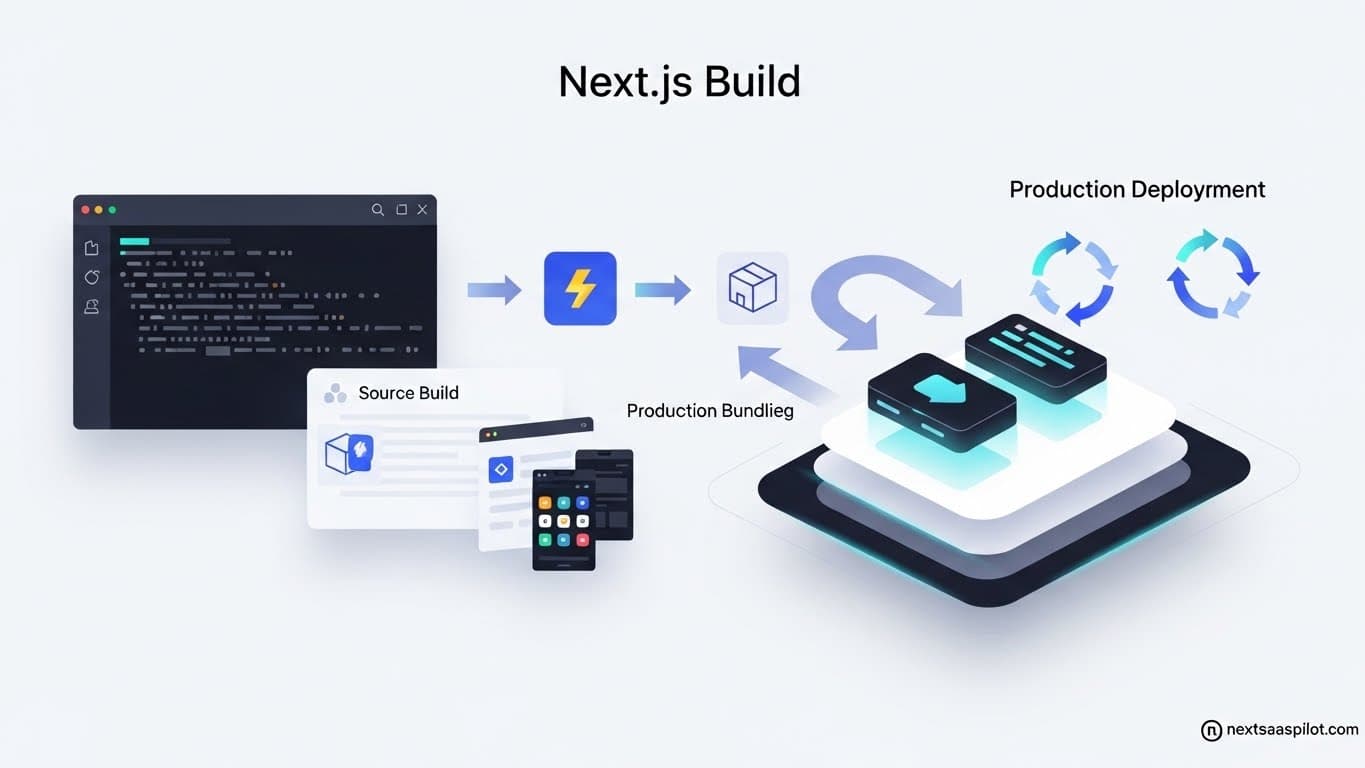
Optimizing your next build command is a critical step for any serious SaaS project. A slow build process wastes developer time, delays deployments, and can hide underlying performance issues that affect your users. By focusing on smart build optimizations, you can create a faster, more efficient development cycle, leading to quicker feature rollouts and a more stable application. This guide walks you through the essential strategies to speed up your Next.js builds.
What is the next build Command?
The next build command is a terminal instruction used in Next.js applications. It starts the production build process, which compiles your code, splits it into optimized chunks, renders static pages, and prepares your application for deployment. This process turns your development code into highly performant files ready for production servers.
This command is the gateway to deploying your SaaS. It performs several key actions:
- Code Compilation: It transpiles your React and JavaScript code using Babel into a version that is compatible with a wide range of browsers.
- Bundling: It bundles your JavaScript modules using a bundler (like Webpack or Turbopack) into a few optimized files to reduce HTTP requests.
- Code Splitting: It automatically splits your code into smaller chunks. This means users only download the code necessary for the page they are viewing, improving initial load times.
- Rendering: It pre-renders pages through Static Site Generation (SSG) or Server-Side Rendering (SSR), depending on how you fetch data.
- Optimization: It optimizes images, fonts, and other assets to ensure the best possible performance.
Understanding this process is the first step toward optimizing it.
Why Is Optimizing the Next.js Build Process Important for SaaS?
Optimizing the build process for a SaaS application directly impacts development velocity and operational costs. Faster builds mean developers can ship features and fixes more quickly. Reduced build times also lower CI/CD pipeline costs, as compute resources are used for shorter periods, making the entire development lifecycle more cost-effective.
For SaaS businesses, time is money. A lengthy build process can become a significant bottleneck. Here are the core reasons why optimization is not just a nice-to-have, but a necessity:
- Faster Deployment Cycles: The faster you can build, the faster you can deploy. This allows your team to be more agile, pushing updates, bug fixes, and new features to customers with greater speed. In a competitive market, this can be a real advantage.
- Improved Developer Experience: No developer enjoys waiting for a build to finish. Long waits interrupt focus and lead to context switching, which reduces productivity. A snappy build process keeps developers in the flow and improves morale.
- Reduced CI/CD Costs: Most CI/CD platforms bill based on build minutes. If you have a large team pushing multiple commits a day, long build times can lead to substantial monthly bills. Cutting build time by 50% can directly cut your CI/CD costs. For example, a project with 10-minute builds running 30 times a day costs significantly more than one with 5-minute builds.
- Quicker Feedback Loops: Faster builds enable quicker testing and validation. When a developer pushes a commit, they get feedback from automated tests and preview deployments much sooner. This helps catch bugs earlier in the process.
How Do You Analyze Your Current Build Performance?
To analyze your build performance, start by measuring the total build time locally and in your CI/CD environment. Next, use the next-bundle-analyzer package to visualize the size of your JavaScript bundles. This helps you identify large dependencies or chunks of code that could be slowing down the process.
You cannot improve what you do not measure. Before you start making changes, you need a baseline.
What Tools Can Help Analyze Build Performance?
Several tools can give you a clear picture of what’s happening during the next build process.
- Manual Timing: The simplest method. Run the build command and time it.time npm run build
Do this a few times to get an average, as the first build after clearing the cache will be slower. - CI/CD Logs: Your CI/CD provider (GitHub Actions, Vercel, CircleCI) provides detailed logs for each job. These logs show the duration of each step, including
next build. This is the most realistic measurement of your production build performance. @next/bundle-analyzer: This is an essential tool for any Next.js project. It creates a visual report of what makes up your JavaScript bundles. Large, unnecessary packages are a common cause of slow builds and poor page performance.
How to set it up:
This will open an interactive treemap in your browser, showing you exactly which dependencies are contributing most to your bundle size.- Install the package:npm install –save-dev @next/bundle-analyzer
- Configure your
next.config.js:const withBundleAnalyzer = require(‘@next/bundle-analyzer’)({
enabled: process.env.ANALYZE === ‘true’,
})
module.exports = withBundleAnalyzer({
// your next.js config
}) - Run the build with the
ANALYZEenvironment variable:ANALYZE=true npm run build
What Are the Core Strategies for Faster Next.js Builds?
The core strategies for faster builds involve upgrading Next.js, using the faster SWC compiler, caching dependencies and build outputs, and being smart about your data fetching. These foundational steps can deliver significant improvements with relatively low effort before moving to more advanced techniques.
Let’s explore the foundational changes that will give you the most significant performance gains.
How Does Upgrading Your Next.js Version Help?
Upgrading your Next.js version ensures you benefit from the latest performance improvements. The Vercel team constantly works on optimizing the build process, including faster compilers, better caching, and more efficient code generation. Staying current is one of the easiest ways to get a “free” performance boost.
Each new Next version introduces optimizations. For example, moving from Next.js 11 to Next.js 12 brought the SWC compiler, which offered a major speed increase over the previous Babel setup. Subsequent versions have continued to refine this, improving both local development speed (next dev) and production build times (next build).
Always check the release notes for new versions. They often detail specific performance enhancements. Before upgrading, make sure to read the migration guide to handle any breaking changes. A structured upgrade process prevents disruptions to your development workflow.
Can You Configure Caching in Your CI/CD Pipeline?
Yes, you can and should configure caching in your CI/CD pipeline. Caching the .next/cache directory between builds allows Next.js to reuse computations from previous builds, dramatically speeding up the process. You should also cache your node_modules directory to avoid reinstalling dependencies on every run.
Build caching is a game-changer for CI/CD performance. Here’s how it works:
- Dependency Caching: Your
node_modulesfolder contains all your project’s dependencies. These rarely change between commits. By caching this folder, you skip the lengthynpm installoryarn installstep on subsequent builds. The cache is typically invalidated only whenpackage-lock.jsonoryarn.lockchanges. - Build Cache: Next.js maintains its own cache in the
.next/cachedirectory. This folder contains outputs from SWC/Babel, generated pages, and other artifacts. Reusing this cache on subsequent builds means Next.js doesn’t have to redo work it has already done.
Here’s an example of how to implement caching in GitHub Actions:
name: CI

on:
  push:
    branches:
      - main

jobs:
  build:
    runs-on: ubuntu-latest

    steps:
      - name: Checkout code
        uses: actions/checkout@v3

      - name: Setup Node.js
        uses: actions/setup-node@v3
        with:
          node-version: '18'

      - name: Cache dependencies
        uses: actions/cache@v3
        with:
          path: ~/.npm
          key: ${{ runner.os }}-node-${{ hashFiles('**/package-lock.json') }}
          restore-keys: |
            ${{ runner.os }}-node-

      - name: Cache Next.js build
        uses: actions/cache@v3
        with:
          path: .next/cache
          key: ${{ runner.os }}-nextjs-${{ hashFiles('**/package-lock.json') }}-${{ hashFiles('**/*.[jt]s', '**/*.[jt]sx') }}
          restore-keys: |
            ${{ runner.os }}-nextjs-${{ hashFiles('**/package-lock.json') }}-

      - name: Install dependencies
        run: npm install

      - name: Build project
        run: npm run build
This configuration creates two cache steps: one for npm packages and one for the Next.js build cache. The keys ensure that the cache is invalidated when relevant files change.
How Can You Optimize Your Codebase for Faster Builds?
Optimizing your codebase involves reducing dependencies, using dynamic imports for large components, and choosing efficient data-fetching strategies. A leaner, more modular codebase gives the next build command less work to do, resulting in faster compilation and bundling times.
While infrastructure changes like caching are powerful, the structure of your code itself plays a huge role.
Why Should You Minimize Dependencies?
Minimizing dependencies is crucial because each new package adds to the overall bundle size and complexity. More code means more to parse, transpile, and bundle, which directly increases build time. Regularly audit package.json and remove unused packages to keep your project lean.
Every dependency you add to your project comes with a cost.
- Increased
node_modulesSize: A largernode_modulesfolder takes longer to install and cache. - Increased Bundle Size: Many packages will be included in your final JavaScript bundles, making them larger and slower to process.
- Potential for Bugs: Every dependency is another potential source of bugs or security vulnerabilities.
Actionable Steps:
- Audit
package.json: Go through your dependencies and devDependencies. Ask yourself: “Is this package still being used? Is it essential?” Use tools likedepcheckto find unused dependencies automatically. - Choose Lightweight Alternatives: When you need a package, look for lightweight options. For example, instead of using a large, comprehensive library like
lodash, you might import only the specific functions you need (e.g.,lodash/debounce). Better yet, you could use a smaller library likedate-fnsinstead ofmoment.jsfor date manipulation. - Be Wary of UI Libraries: Large Next.js UI library collections can be a major source of bloat. If you only use a handful of components from a library, you may be bundling the entire library unnecessarily. Check if the library supports tree-shaking, which automatically removes unused code.
How Do Dynamic Imports Speed Up Builds?
Dynamic imports, implemented with next/dynamic, split code into separate chunks that are loaded on demand. This reduces the size of the initial JavaScript bundle that next build has to create. By deferring the loading of heavy components until they are needed, you decrease the complexity of the main build graph.
Imagine you have a complex charting library or a rich text editor that only appears on a specific page or within a modal. There’s no reason to include that code in the initial bundle for every user.
Dynamic imports let you load these components lazily.
Example:
Instead of a standard import:
import HeavyComponent from '../components/HeavyComponent';
function MyPage() {
return;
}
Use a dynamic import:
import dynamic from 'next/dynamic';
const DynamicHeavyComponent = dynamic(() => import('../components/HeavyComponent'), {
loading: () =>Loading...
,
ssr: false // Optional: disable server-side rendering for this component
});
function MyPage() {
return;
}
Benefits for Builds:
- Smaller Main Bundle: The code for
HeavyComponentis moved into its own chunk. The main bundle only contains a small reference to it. This makes the primary bundling step faster. - Parallel Processing: The bundler can process these smaller chunks more efficiently, sometimes in parallel.
This is especially useful for components that are:
- Below the fold.
- Inside conditional UI (modals, tabs).
- Part of a specific user flow (e.g., an admin dashboard).
How Does Data Fetching Strategy Affect Build Times?
Your data fetching strategy directly impacts build times, especially with Static Site Generation (SSG). Pages using getStaticProps require data to be fetched and rendered during the next build process. If these data fetches are slow or numerous, your build will take longer.
Next.js offers several data fetching methods, and your choice has significant consequences for build performance.
When Does getStaticProps Slow Down Builds?
getStaticProps slows down builds when it needs to fetch data for a large number of pages. For a SaaS with thousands of dynamic pages, like blog posts or documentation articles, the build process must fetch data for every single page before it can complete, which can be extremely time-consuming.
SSG is fantastic for performance, as it generates static HTML files at build time. However, this means the build server has to do the work upfront.
Consider a SaaS with a blog that has 5,000 posts. If you use getStaticPaths and getStaticProps to generate every blog post page, the build process will look like this:
getStaticPathsruns once to get the list of all 5,000 slugs.getStaticPropsruns 5,000 times, once for each page.
If each getStaticProps call takes just 200 milliseconds to fetch data from your CMS, the total time for data fetching alone would be 5000 * 200ms = 1000 seconds, which is over 16 minutes. This doesn’t even include the time it takes for Next.js to render the pages and perform other optimizations.
Optimization Strategies for SSG:
- Use Incremental Static Regeneration (ISR): With ISR, you don’t have to build every page upfront. You can build a subset of pages (e.g., the most recent 100 posts) and let others be generated on-demand when a user first requests them. The
revalidateproperty ingetStaticPropskeeps the content fresh.export async function getStaticProps(context) {
const data = await fetchPost(context.params.slug);
return {
props: { data },
revalidate: 60, // Re-generate the page at most once every 60 seconds
};
} - Optimize Your Data Source: Ensure your API or database is fast. If fetching data for a single page takes a long time, the cumulative effect on your build will be massive. Use caching at the API level and optimize your database queries.
- Build Only What Is Necessary: For large documentation sites or blogs, consider if all pages need to be built every time. You might have a separate build process for documentation that only runs when docs are updated. A good Next.js website template often includes patterns for this.
Is Server-Side Rendering (SSR) Faster for Builds?
Yes, using Server-Side Rendering (getServerSideProps) results in much faster build times compared to SSG with many pages. With SSR, pages are not generated during the build. The next build command only needs to prepare the serverless functions, which is a very quick process. The data fetching and rendering happen at request time.
If your build times with SSG are becoming unmanageable, switching to SSR or a hybrid approach can be a solution.
| Feature | Static Site Generation (SSG) | Server-Side Rendering (SSR) |
|---|---|---|
| Build Time | Slow (proportional to the number of pages) | Fast (only prepares server-side code) |
| Request Time | Very Fast (serves static HTML from a CDN) | Slower (fetches data and renders on each request) |
| Data Freshness | Stale until the next build (or revalidation with ISR) | Always fresh (fetched on every request) |
| Use Case | Blogs, marketing pages, documentation (content that doesn’t change often) | Dashboards, user profiles, e-commerce (personalized, real-time data) |
For many SaaS applications, a hybrid model is best. Use SSG for your marketing site, blog, and documentation. Use SSR or client-side rendering with a Next.js Provider pattern for your authenticated app dashboard, where data is dynamic and personalized. This approach gives you the best of both worlds: fast builds and a great user experience.
What Advanced Configuration Options Can Improve Build Speed?
Advanced options include disabling source map generation for production, configuring the SWC compiler’s minification settings, and using a custom webpack configuration for specific optimizations. These settings provide finer control over the build process but should be used with care as they can affect debugging.
When you’ve exhausted the basic strategies, you can dive deeper into Next.js configuration.
Should You Disable Source Maps in Production?
Disabling source maps for production builds can reduce build times and memory usage. Source maps are useful for debugging, but they are not needed for the deployed application to run. You can disable them in your next.config.js to get a small but easy performance win.
Source maps are files that map your compiled, minified code back to your original source code. This is incredibly helpful for debugging errors in production, as you can see the error in the context of the code you actually wrote.
However, generating them takes time and consumes memory during the build.
To disable them, modify your next.config.js:
/** @type {import('next').NextConfig} */
const nextConfig = {
  productionBrowserSourceMaps: false,
}

module.exports = nextConfig
Trade-off: You gain some build speed but lose the ability to easily debug production issues. A good compromise is to enable source maps but upload them to a monitoring service (like Sentry or Datadog) and not expose them publicly. This way, your monitoring tools can use them, but your users don’t download them.
Can You Parallelize Type Checking?
Yes, you can run TypeScript type checking in a separate, parallel process from the build. By default, next build runs type checking as part of the build. If you have a large codebase, this can be slow. You can disable it and run tsc --noEmit as a separate step in your CI pipeline.
Next.js will automatically check for TypeScript errors during a build. To speed things up, you can tell Next.js to ignore these errors during the build and handle type checking separately.
In your next.config.js:
/** @type {import('next').NextConfig} */
const nextConfig = {
  typescript: {
    // !! WARN !!
    // Dangerously allow production builds to successfully complete even if
    // your project has type errors.
    // !! WARN !!
    ignoreBuildErrors: true,
  },
}

module.exports = nextConfig
Then, in your package.json and CI script, separate the commands:
package.json:
"scripts": {
  "build": "next build",
  "type-check": "tsc --noEmit"
}
CI pipeline step:
- name: Type Check
  run: npm run type-check

- name: Build project
  run: npm run build
This allows the build to proceed even if the type checking is still running. If the type check fails, the pipeline will still fail, preventing a deployment with type errors.
What Is the Role of Turbopack?
Turbopack is a new, Rust-based bundler designed to be an incremental successor to Webpack. It promises significantly faster performance for both development and production builds. While still in development for production builds (next build), it is available in beta and represents the future of bundling in Next.js.
Turbopack is being built by the creators of Webpack and is designed from the ground up for speed. It uses aggressive caching and is architected to perform the minimum amount of work possible.
As of late 2025, Turbopack is stable for the development server (next dev --turbo) and is in beta for production builds. To try it, you can run:
npm run build -- --turbo
Keep an eye on the official Next.js documentation for updates. Once Turbopack becomes stable for production builds, it could offer another step-change improvement in build performance, just as SWC did. Integrating it will be a high-priority action item for any team looking to optimize their build times. This is especially true for complex projects, like those integrating Next.js React Native components or starting from a large Next.js SaaS template, where bundling complexity is high.
Final Thoughts: A Continuous Process
Optimizing your next build time is not a one-time task but a continuous process of measurement, analysis, and refinement. As your SaaS application grows in complexity, new bottlenecks will emerge. By adopting the strategies outlined in this guide, you create a foundation for a scalable and efficient development pipeline.
Start with the basics: keep Next.js updated, implement CI/CD caching, and analyze your bundles. Then, move on to codebase optimizations like minimizing dependencies and using dynamic imports. Finally, choose the right data fetching strategy for your content, understanding the trade-offs between build time and request time performance.
A faster build cycle empowers your development team, reduces operational costs, and ultimately allows you to deliver value to your customers more quickly. The time invested in build optimization pays for itself many times over in productivity and agility.